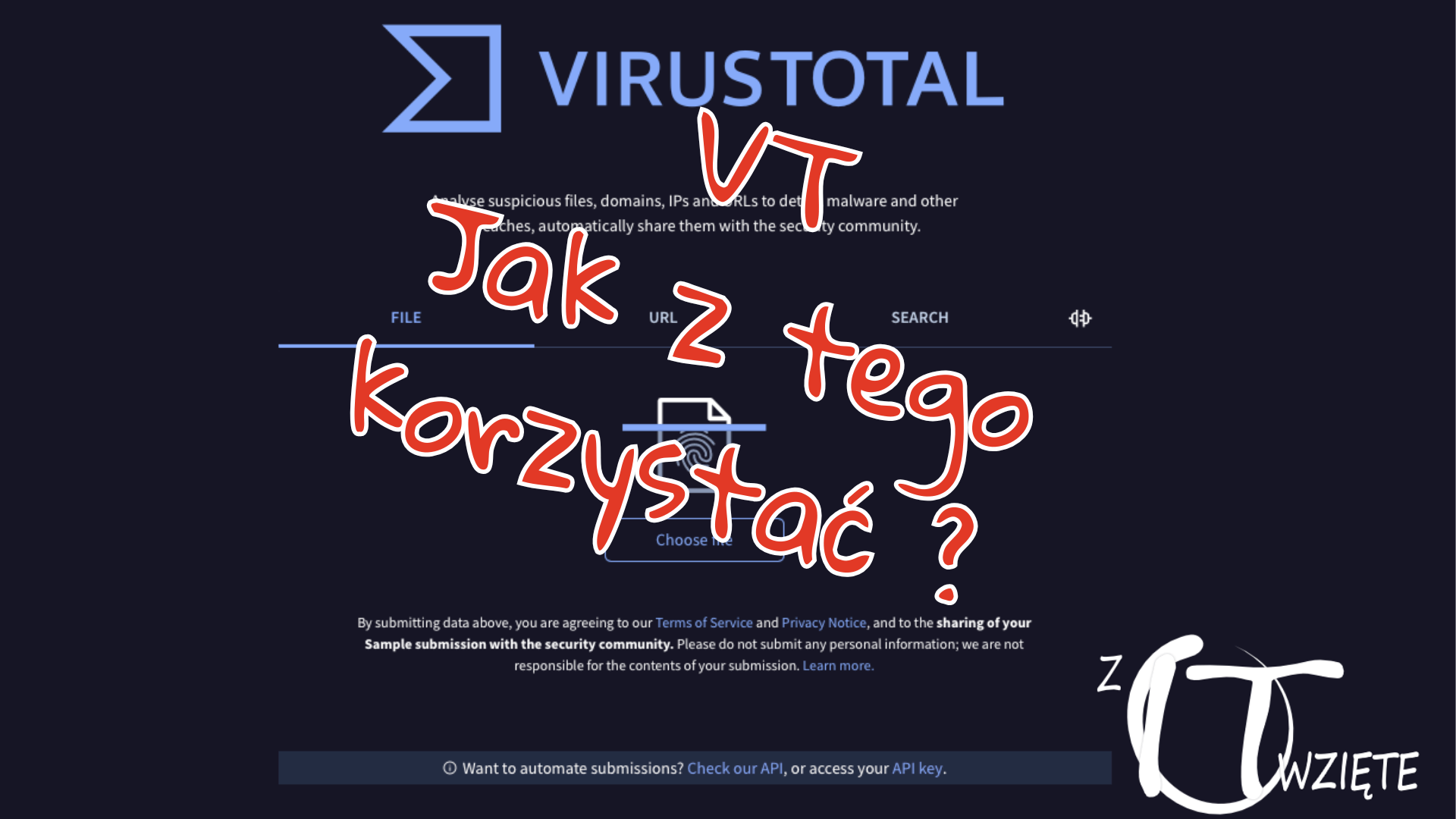
If you rely solely on Windows Defender for protection, you might wonder whether it’s enough when a suspicious email attachment lands in your inbox. The answer is straightforward: never open suspicious attachments directly. Instead, use VirusTotal to verify files before taking any risks.
What is VirusTotal?
VirusTotal is a free online service owned by Google that aggregates scan results from more than 70 different antivirus engines and threat detection tools. When you upload a file, it gets scanned by all these engines simultaneously, giving you a comprehensive security assessment that no single antivirus could provide.
Think of it as getting a second opinion—or rather, 70+ opinions—on whether a file is safe.
When Should You Use VirusTotal?
Consider scanning attachments when you encounter any of these red flags:
- Unknown senders - Emails from addresses you don’t recognize
- Unusual content - Messages with language errors, urgent demands, or pressure tactics
- Unexpected files from known contacts - Even trusted accounts can be compromised
- Mismatched file extensions - A file named
invoice.exeinstead ofinvoice.pdfis a major warning sign - Too-good-to-be-true offers - Prize notifications, unexpected refunds, or urgent security alerts
How to Verify a Suspicious File
The verification process is simple and takes just a few minutes:
Step 1: Save the Attachment Without Opening It
Right-click the attachment in your email client and save it to your desktop or downloads folder. Do not double-click or open the file.
Step 2: Visit VirusTotal
Open your browser and navigate to www.virustotal.com.
Step 3: Upload the File
Click the “File” tab and either drag your suspicious file onto the page or click “Choose file” to browse for it. The upload begins immediately.
Step 4: Interpret the Results
After the scan completes (usually within seconds), you’ll see results from all antivirus engines:
- Green indicators - No threats detected by that engine
- Red indicators - Malware detected
- The detection ratio - Shows how many engines flagged the file (e.g., “3/72”)
Understanding Detection Results
Here’s how to interpret different scenarios:
0 Detections
The file is likely safe, though zero-day malware might not be detected yet. Proceed with caution if other red flags exist.
1-3 Detections
Often false positives, especially for legitimate software, custom tools, or keygens. Check which engines flagged it—obscure engines tend to have more false positives. If major engines (Microsoft, ESET, Kaspersky, Bitdefender) show clean, the file is probably safe.
4+ Detections
Take this seriously. Multiple engines agreeing on a threat is a strong indicator of actual malware. Delete the file and don’t look back.
Advanced Tips
Check Hash Instead of Uploading
For confidential files, calculate the SHA-256 hash instead of uploading:
Get-FileHash suspicious-file.exeCopy the hash and search it on VirusTotal. If the file was previously scanned by anyone, you’ll see results without uploading your copy.
Scan URLs Too
Paste suspicious links into VirusTotal before clicking them. The service checks URLs against reputation databases for phishing sites, malware distribution, and scam pages.
Use the Browser Extension
VirusTotal offers browser extensions for Chrome and Firefox that let you scan links and downloads with a right-click.
Is This Excessive Caution?
Some people with full antivirus suites still scan unexpected attachments through VirusTotal. Is that paranoia? Not really. Your antivirus might miss something that another engine catches. Getting 70+ opinions takes seconds and costs nothing.
The few minutes spent verifying a file could save you hours of dealing with ransomware, stolen credentials, or a compromised system.
The Bottom Line
Windows Defender provides solid baseline protection for most users. However, when something feels off about an email attachment, take the extra step. Visit VirusTotal, upload the file, and let 70+ antivirus engines give their verdict. It’s free, fast, and could save you from a serious security incident.